Row and column background color
2002-07-17 Worksheets 0 75
The macros below can be used to set the background color of e.g. every other row or column in any worksheet range:
Sub ShadeAlternateRows(rngTarget As Range, intColor As Integer, lngStep As Long)
' adds a background color = intColor to every lngStep rows in rngTarget
' example: ShadeAlternateRows Range("A1:D50"), 27, 2
' colors every 2 rows light yellow
Dim r As Long
    If rngTarget Is Nothing Then Exit Sub
    With rngTarget
        .Interior.ColorIndex = xlColorIndexNone
        ' remove any previous shading
        For r = lngStep To .Rows.Count Step lngStep
            .Rows(r).Interior.ColorIndex = intColor
        Next r
    End With
End Sub

Sub ShadeAlternateColumns(rngTarget As Range, intColor As Integer, lngStep As Long)
' adds a background color = intColor to every lngStep column in rngTarget
' example: ShadeAlternateColumns Range("A1:J20"), 27, 2
' colors every 2 columns light  yellow
Dim c As Long
    If rngTarget Is Nothing Then Exit Sub
    With rngTarget
        .Interior.ColorIndex = xlColorIndexNone
        ' remove any previous shading
        For c = lngStep To .Columns.Count Step lngStep
            .Columns(c).Interior.ColorIndex = intColor
        Next c
    End With
End Sub
You can use select a worksheet range and select Format, Conditonal Formatting
and fill in the dialog like the example below to apply alternate background color to every other row: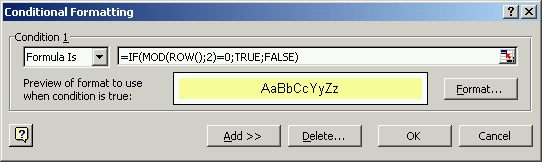
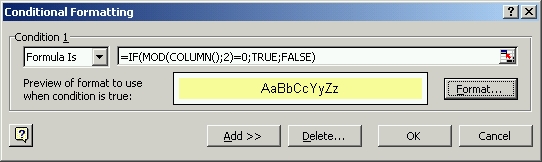
You can use select a worksheet range and select Format, Conditonal Formatting and fill in the dialog like the example below to apply alternate background color to every other column: